Swift · SwiftUI · Android · Jetpack Compose · Skip
Skip Framework: A Cross-Platform Journey for Native iOS Developer
A native iOS developer’s hands-on journey building a cross-platform SwiftUI app for iOS and Android with Skip.

Introduction
My name is Maxim Ermolaev, and I’ve been developing for Apple platforms for over 8 years. I’m a Swift enthusiast and also use it for backend development with Vapor. Building Android applications has always been the missing piece to become a true full-stack Swift developer.
Cross-Platform Experience
I’ve experimented with various cross-platform solutions before. React Native left me with a rather negative impression, though Expo shines these days, especially with AI-assisted development. Flutter performed well, but with the recent Liquid Glass announcement, its future direction remains uncertain. Kotlin Multiplatform sounded great and looked like the way forward for me to start building Android applications.
But then one day, X’s algorithm brought Skip.Tools into my feed. I opened their website and right on the front page saw:
Build native apps for iPhone and Android with Skip. Skip brings Swift app development to Android.
First Steps
I decided to try it immediately. I opened the Getting Started section, installed Skip via Homebrew, set up Android Studio (required to run Android apps), ran skip checkup, and configured my environment until I got all green checkmarks. Then I downloaded a sample project, opened both IDEs (Xcode and Android Studio), and hit run in Xcode.
And yes, it wasn’t a joke. The project launched on both the iOS simulator and the Android simulator. To make sure it was really the same application, I modified the interface a bit in SwiftUI and ran it again. Success again — the app looked identical (accounting for platform-specific UI elements) on both platforms!
“You had my curiosity, but now you have my attention.” — Calvin Candie, Django Unchained
What is Skip?
Skip is a tool that enables developers to build genuinely native apps for both iOS and Android from a single Swift and SwiftUI codebase. The magic happens during build time: as you write your Swift and SwiftUI code, Skip’s Xcode plugin continuously transpiles it into Kotlin and Jetpack Compose for Android.
Skip offers two operational modes:
Skip Lite (Transpiled Mode): The transpiler converts Swift source code into equivalent Kotlin code that runs on Android. Because the code is converted to Kotlin, it can directly call other Kotlin and Java APIs without any bridging. This mode provides excellent integration with Android’s ecosystem and full transparency — you can see and understand all generated Kotlin code.
Skip Fuse (Native Mode): This mode uses the Swift Android SDK to run native Swift code directly on Android’s runtime. It allows you to use any Swift Package Manager dependency that compiles for Android, greatly expanding the catalog of available libraries. The trade-off is slightly larger app sizes and longer build times, but you get access to the entire Swift ecosystem.
Pricing
Skip is so good that it even has a price. There are three subscription tiers, but here’s the important part: native mode (Skip Fuse) is only available in the paid Small Business tier and above.
To get started, you can activate a trial mode. After that, you’ll receive a license key for a free evaluation period that you need to save in a skipkey.env file. During the evaluation period, every module using Skip will show an error, but the build will succeed. What happens when this period ends? I don’t know yet — my guess is the build will fail. I’ll write an update once I find out.
Update: Skip now offers one closed-source Fuse project on the free tier, making it easier to get started with native mode without committing to a paid subscription right away.
My Pet Project: Winrate
The next step was to try Skip on my pet project called Winrate. It’s a cryptocurrency exchange aggregator where you can track your deposit status across multiple exchanges using API keys. The app has an iOS mobile client and a backend built with Vapor. Porting it to Android seemed like the perfect next step.
The original app was tuist-based with an MVVM architecture split into Base modules and Feature modules. However, Skip’s workflow is built around Swift Package Manager (SPM), so I had to change my approach. After trying a few different migration strategies, I arrived at the solution that’s also mentioned in the documentation: it would be easier to generate a clean Skip app template using skip init and then port my existing application into that structure.
From this point forward, I’ll be working with Skip Fuse (native mode).
Skip Project Structure
When you run skip init -native-app -appid=some.app.id app-project AppName, Skip creates a project with a well-defined structure.
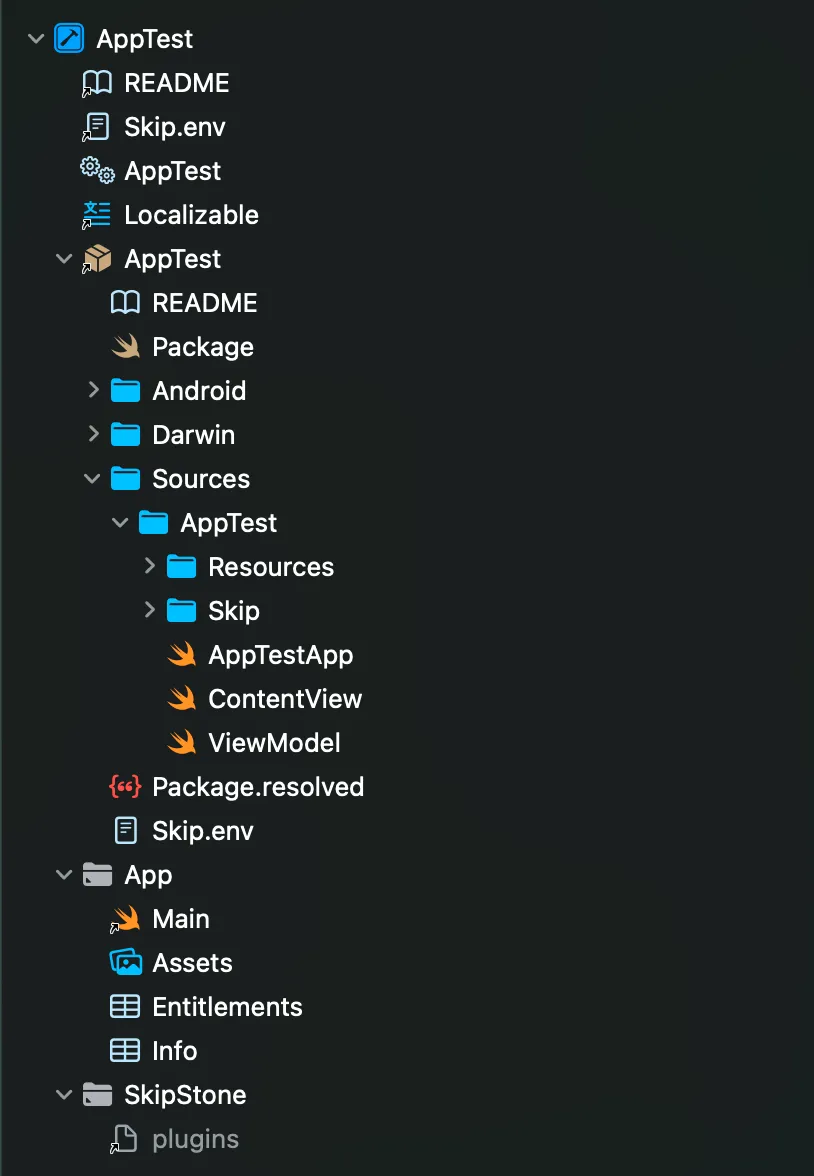
Skip Configuration:
-
Skip.env— shared app configuration file for both platforms -
Sources/AppTest/Skip/skip.yml— module-level Skip configuration controlling transpilation behavior
Platform Folders:
-
Darwin/— contains the Xcode project for iOS/macOS development -
Android/— contains Gradle configuration for Android builds
Build System:
SkipStone/plugins— Skip’s build plugin that handles the Swift-to-Kotlin transpilation process.
The key insight: you work primarily in the Sources/ folder writing Swift code, and Skip automatically handles the Android side through the build plugin. The skip.yml file in each module controls Skip’s behavior for that specific module.
Refactoring Towards Simplicity
Shoutout to Thomas Ricouard — he’s been a big inspiration for embracing pure vanilla SwiftUI. His article about the inefficiency of MVVM and his open-source projects opened my eyes to a simpler approach.
I rebuilt Winrate’s architecture around three key principles:
SPM-based modules: Moving away from Tuist to native Swift Package Manager aligned perfectly with Skip’s workflow and simplified the entire build process.
Pure SwiftUI with Dependency Injection through Environment: No more ViewModels. Instead, I leverage SwiftUI’s native @Environment for dependency injection, keeping views clean and dependencies explicit.
Navigation inspired by AppRouter — A clean, declarative navigation pattern that feels natural in SwiftUI and works seamlessly across both platforms.
GitHub - Dimillian/AppRouter: A simple router for SwiftUI apps
Dependencies
By default, a Skip project starts with two core dependencies: skip and skip-fuse-ui. However, for Winrate, I needed one additional package: skip-keychain to securely store access tokens.
let package = Package(
    name: "winrate-app-skip",
    defaultLocalization: "en",
    platforms: [
        .iOS(.v17),
        .macOS(.v14)
    ],
    products: [
        //Main-module
        .library(
            name: "Winrate",
            type: .dynamic,
            targets: ["Winrate"]
        ),

        //Base-modules
        .library(
            name: "Navigation",
            type: .dynamic,
            targets: ["Navigation"]
        ),
        .library(
            name: "Design",
            type: .dynamic,
            targets: ["Design"]
        ),
        //And others

        //UI-modules
        .library(
            name: "AuthorizationUI",
            type: .dynamic,
            targets: ["AuthorizationUI"]
        ),
        .library(
            name: "ProfileUI",
            type: .dynamic,
            targets: ["ProfileUI"]
        )
        //And others
    ],
    dependencies: [
        .package(
            url: "https://source.skip.tools/skip.git",
            from: "1.6.27"
        ),
        .package(
            url: "https://source.skip.tools/skip-fuse-ui.git",
            from: "1.0.0"
        ),
        .package(
            url: "https://source.skip.tools/skip-keychain.git",
            from: "0.3.0"
        ),
    ]
)
Skip-keychain is one of many additional frameworks that provide cross-platform functionality out of the box. It uses the Keychain on Darwin platforms and EncryptedSharedPreferences on Android, giving you a unified API regardless of the platform. Here’s a simple wrapper I created:
import SkipKeychain

public struct KeychainWrapper {

    private static var keychain: Keychain {
        Keychain.shared
    }

    public static func set(_ value: String,
                           for key: String) throws {
        try keychain.set(value, forKey: key)
    }

    public static func get(_ key: String) throws -> String? {
        return try keychain.string(forKey: key)
    }

    public static func delete(_ key: String) throws {
        try keychain.removeValue(forKey: key)
    }
}
This code works identically on both iOS and Android — no platform-specific code required. The Skip ecosystem includes frameworks for Firebase, Bluetooth, SQL, Stripe, and many others, making it easy to add platform-specific features without writing platform-specific code.
The Reality Check
So, can you just write regular SwiftUI code and run your app on Android? The answer is no — you can’t do it completely without limitations.
While Skip is impressive, it’s important to understand where the boundaries are. Not every SwiftUI API is supported, and some Swift language features don’t transpile cleanly to Kotlin. The Skip team maintains comprehensive documentation about what’s supported and what isn’t, but you’ll inevitably run into scenarios where you need to work around limitations.
The good news: Skip supports a substantial subset of SwiftUI that covers most common use cases:
-
Basic views and layouts (VStack, HStack, ZStack, List, etc.)
-
Navigation (NavigationStack, NavigationLink)
-
State management (
@State,@Binding,@Environment) -
Common modifiers and styling
-
Gestures and animations
Working Around Limitations
When you hit a limitation, you have several options:
Conditional Compilation — Use platform-specific compiler directives to provide different implementations for iOS and Android. Here’s a real example from Winrate:
public struct LoadingIndicator: View {
    private let size: ControlSize

    public init(size: ControlSize = .large) {
        self.size = size
    }

    public var body: some View {
        ProgressView()
        #if !os(Android)
            .progressViewStyle(
              CircularProgressViewStyle(tint: Color.green)
            )
            .controlSize(size)
        #endif
    }
}
In this example, progressViewStyle and controlSize modifiers aren’t supported on Android, so we wrap them in a conditional compilation block. The ProgressView() itself works fine on both platforms, but the styling modifiers are iOS-only. On Android, the loading indicator will use the default Material Design style, which actually looks native to the platform.
Platform-Specific Features — When you need to use APIs that simply don’t exist on the other platform, you can hide entire features behind conditional compilation:
import SwiftUI
#if !os(Android)
import AuthenticationServices
#endif

public struct AuthTypeSelectionView: View {
    @State var isLoading = false

    public init() {}

    public var body: some View {
        VStack {
            Spacer()
            VStack(spacing: 16) {
                #if !os(Android)
                SignInWithAppleButton(.signIn) { request in
                    request.requestedScopes = [.fullName, .email]
                } onCompletion: { result in
                    handleAppleSignInResult(result)
                }
                .signInWithAppleButtonStyle(.white)
                .frame(height: 50)
                .cornerRadius(13)
                .disabled(isLoading)
                #endif

                PrimaryButton(
                    title: "Sign in",
                    action: { router.navigateTo(.registration) }
                )
            }
        }
    }
}
Sign In with Apple is an iOS-specific feature that has no equivalent on Android. In this case, we conditionally import AuthenticationServices and only show the Apple sign-in button on iOS. Android users simply won’t see this authentication option, which is perfectly acceptable since it’s platform-specific.
Some advanced SwiftUI features like anchors, matchedGeometryEffect, Canvas, and complex animation modifiers are currently unavailable in Skip. So, you’ll have to work around them if you want your code to run on Android. But what if you don’t want to give up these features?
ComposeView: When You Need Full Control
Skip provides ComposeView — a special container that allows you to embed pure Jetpack Compose code directly into your SwiftUI views on Android, while keeping the SwiftUI version intact on iOS. You create a SwiftUI view that uses all the fancy iOS features you want, and then provide an alternative Compose implementation for Android. From the rest of your app’s perspective, it’s just a regular view — no one needs to know there are two different implementations underneath.
A Real Example: The Deposit Screen
Let me show you a complex screen from Winrate that demonstrates when ComposeView becomes necessary:
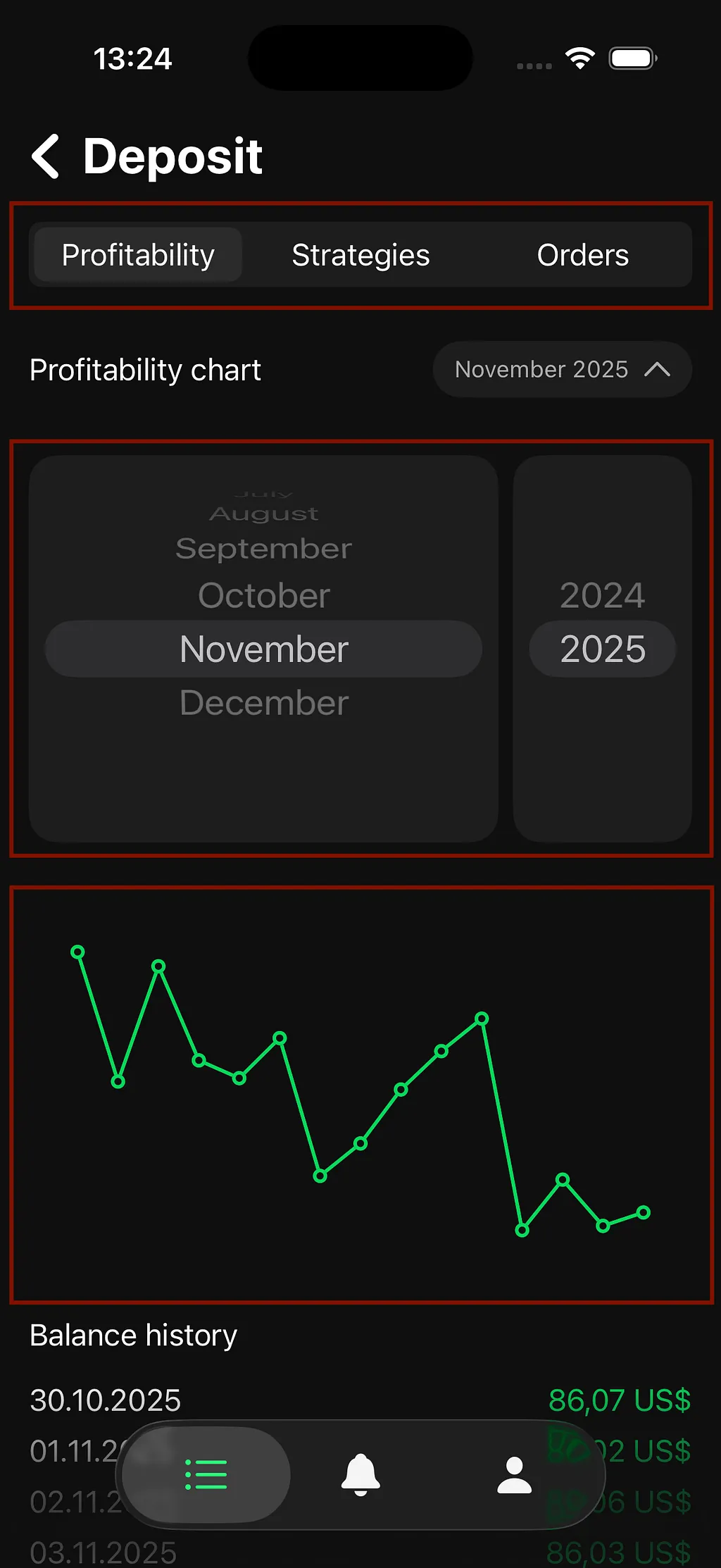
This Deposit screen has three challenging components marked in red:
-
SegmentControl — A custom segmented control with three tabs whose transition animation relied on
matchedGeometryEffect. -
Custom Date Pickers — Two
.wheel-style pickers for month and year. -
Line Chart — A profitability chart created with
Charts.
In all three cases, I decided to create an alternative implementation in Compose using ComposeView, since these key aspects are not supported by Skip on Android.
The Pattern: Platform-Specific Views
My approach follows a consistent pattern for all complex components. I create a main view that internally splits into platform-specific implementations using conditional compilation:
public struct SegmentedControl: View {
    private let titles: [String]
    @Binding var selectedIndex: Int

    public var body: some View {
        #if os(Android)
        ComposeView {
            AndroidView(
                titles: titles,
                selectedIndex: selectedIndex,
                onSelectionChanged: { index in
                    selectedIndex = index
                }
            )
        }
        #else
        iOSView(
          titles: titles,
          selectedIndex: $selectedIndex
        )
        #endif
    }
}
The iOS implementation uses pure SwiftUI with matchedGeometryEffect for smooth animations:
#if os(iOS)
struct iOSView: View {
    @Binding var selectedIndex: Int
    @Namespace private var segmentedControl

    var body: some View {
        HStack {
            ForEach(0..<titles.count, id: \.self) { index in
                Button {
                    withAnimation(.smooth(duration: 0.5)) {
                        selectedIndex = index
                    }
                } label: {
                    Text(titles[index])
                }
                .matchedGeometryEffect(id: index, in: segmentedControl)
            }
        }
        .background(
            RoundedRectangle(cornerRadius: 7)
                .matchedGeometryEffect(
                    id: selectedIndex,
                    in: segmentedControl,
                    isSource: false
                )
        )
    }
}
#endif
The Android implementation uses Jetpack Compose’s native SingleChoiceSegmentedButtonRow:
#if SKIP
struct AndroidView: ContentComposer {
    let titles: [String]
    let selectedIndex: Int
    let onSelectionChanged: (Int) -> Void

    @Composable
    override func Compose(context: ComposeContext) {
        SingleChoiceSegmentedButtonRow(
            Modifier.fillMaxWidth()
        ) {
            for index in 0..<titles.count {
                SegmentedButton(
                    shape = SegmentedButtonDefaults.itemShape(
                        index = index,
                        count = titles.count
                    ),
                    onClick = { onSelectionChanged(index) },
                    selected = index == selectedIndex
                ) {
                    Text(titles[index])
                }
            }
        }
    }
}
#endif
Important: To use Jetpack Compose components in your Android implementation, you need to import them at the top of your Swift file, also wrapped in conditional compilation:
import SwiftUI
#if SKIP
import androidx.compose.foundation.layout.size
import androidx.compose.material3.SegmentedButton
import androidx.compose.material3.SegmentedButtonDefaults
import androidx.compose.material3.SingleChoiceSegmentedButtonRow
import androidx.compose.ui.Modifier
import androidx.compose.ui.unit.dp
import androidx.compose.foundation.layout.padding
import androidx.compose.foundation.background
import androidx.compose.foundation.layout.fillMaxWidth
#endif
DatePicker: Wheel Style vs Dropdown
The same pattern applies to the date picker components. On iOS, I wanted the classic wheel-style picker that feels native to the platform. On Android, dropdown menus are more appropriate.
The iOS implementation uses SwiftUI’s Picker with .pickerStyle(.wheel):
#if os(iOS)
struct iOSView: View {
    @Binding var currentMonth: Int
    @Binding var currentYear: Int
    let months: [String]
    let years: [String]

    var body: some View {
        HStack(spacing: 8) {
            Picker(selection: $currentMonth, label: EmptyView()) {
                ForEach(0..<months.count, id: \.self) { index in
                    Text(months[index])
                        .foregroundColor(Color.Text.primary)
                }
            }
            .labelsHidden()
            .pickerStyle(.wheel)
            .background(Color.BG.secondary)
            .cornerRadius(16)

            Picker(selection: $currentYear, label: EmptyView()) {
                ForEach(0..<years.count, id: \.self) { index in
                    Text(years[index])
                        .foregroundColor(Color.Text.primary)
                }
            }
            .labelsHidden()
            .pickerStyle(.wheel)
            .background(Color.BG.secondary)
            .frame(width: 100)
            .cornerRadius(16)
        }
    }
}
#endif
The Android implementation uses Material 3’s DropdownMenu for a native Android feel:
#if SKIP
struct AndroidView: ContentComposer {
    let currentMonth: Int
    let currentYear: Int
    let months: [String]
    let years: [String]
    let onMonthChanged: (Int) -> Void
    let onYearChanged: (Int) -> Void

    @Composable
    override func Compose(context: ComposeContext) {
        let monthExpanded = remember { mutableStateOf(false) }
        let yearExpanded = remember { mutableStateOf(false) }

        Row(modifier: Modifier.fillMaxWidth()) {
            // Month Dropdown
            Box(modifier: Modifier.weight(Float(1))) {
                Box(
                    modifier: Modifier
                        .fillMaxWidth()
                        .height(56.dp)
                        .clip(RoundedCornerShape(8.dp))
                        .background(mainColor.asComposeColor())
                        .clickable { monthExpanded.value = true }
                        .padding(horizontal: 16.dp),
                    contentAlignment: Alignment.CenterStart
                ) {
                    Text(
                        text: months[currentMonth],
                        color: textColor.asComposeColor()
                    )
                }

                DropdownMenu(
                    expanded: monthExpanded.value,
                    onDismissRequest: { monthExpanded.value = false }
                ) {
                    for index in 0..<months.count {
                        DropdownMenuItem(
                            text: { Text(months[index]) },
                            onClick: {
                                onMonthChanged(index)
                                monthExpanded.value = false
                            }
                        )
                    }
                }
            }

            Spacer(modifier: Modifier.width(8.dp))

            // Year Dropdown (similar implementation)
        }
    }
}
#endif
Charts: Integrating Third-Party Android Libraries
The chart example is the most interesting case because we need an alternative to an entire framework. SwiftUI’s Charts framework isn’t supported by Skip, so we need a charting solution for Android. With Skip, this isn’t a problem at all — we simply add a dependency to the skip.yml file of the module where we need it.
I used the ComposeCharts library, here’s how to add it:
GitHub - ehsannarmani/ComposeCharts: Animated & Flexible Practical Charts For Jetpack Compose
skip:
  mode: 'native'

build:
  contents:
    - block: 'dependencies'
      contents:
        # compose charts library
        - 'implementation("io.github.ehsannarmani:compose-charts:0.1.8")'
That’s it! Skip will now include this Jetpack Compose charting library in your Android build. You can use any Gradle dependency this way, giving you access to the entire Android ecosystem. Now let’s look at how to use this library. First, add the necessary imports:
import SwiftUI
#if canImport(Charts)
import Charts
#endif
#if SKIP
import ir.ehsannarmani.compose_charts.LineChart
import ir.ehsannarmani.compose_charts.models.Line
import androidx.compose.ui.graphics.SolidColor
import androidx.compose.ui.unit.dp
import androidx.compose.foundation.layout.fillMaxWidth
import androidx.compose.foundation.layout.height
import androidx.compose.foundation.layout.padding
import androidx.compose.ui.Modifier
#endif
Important note: The dependency name io.github.ehsannarmani doesn’t necessarily match the package name used in imports. This might be obvious to experienced Android developers, but it cost me some time to figure out. To find the correct package name for imports, check the library’s build.gradle.kts file. In this case, it’s packageName = "ir.ehsannarmani.compose_charts".
The iOS implementation uses SwiftUI’s native Charts framework:
#if os(iOS)
struct iOSView: View {
    let values: [Balance]

    var body: some View {
        Chart(values, id: \.date) { balance in
            LineMark(
                x: .value("Day", balance.date),
                y: .value("Amount", balance.amount)
            )
            .interpolationMethod(.linear)
            .symbol(Circle().strokeBorder(lineWidth: 2))
            .foregroundStyle(Color.BG.accent)

            PointMark(
                x: .value("Index", balance.date),
                y: .value("Value", balance.amount)
            )
        }
        .chartYAxis {
            AxisMarks(position: .trailing) {
                AxisValueLabel()
            }
        }
    }
}
#endif
The Android implementation uses the ComposeCharts library:
#if SKIP
struct AndroidView: ContentComposer {
    let values: [Balance]
    let color: Color

    @Composable
    override func Compose(context: ComposeContext) {
        let chartValues = remember {
            let list = mutableListOf<Double>()
            for balance in values {
                list.add(balance.amount)
            }
            list.toList()
        }

        let ccolor = color.asComposeColor()
        let minValue = remember { chartValues.minOrNull() ?? 0.0 }
        let maxValue = remember { chartValues.maxOrNull() ?? 0.0 }

        LineChart(
            modifier = Modifier
                .fillMaxWidth()
                .padding(horizontal = 22.dp),
            data = remember {
                listOf(
                    Line(
                        label = "Profitability",
                        values = chartValues,
                        color = SolidColor(ccolor)
                    )
                )
            },
            curvedEdges = false,
            maxValue = maxValue,
            minValue = minValue,
            gridProperties = GridProperties(enabled = false),
            dividerProperties = DividerProperties(enabled = false)
        )
    }
}
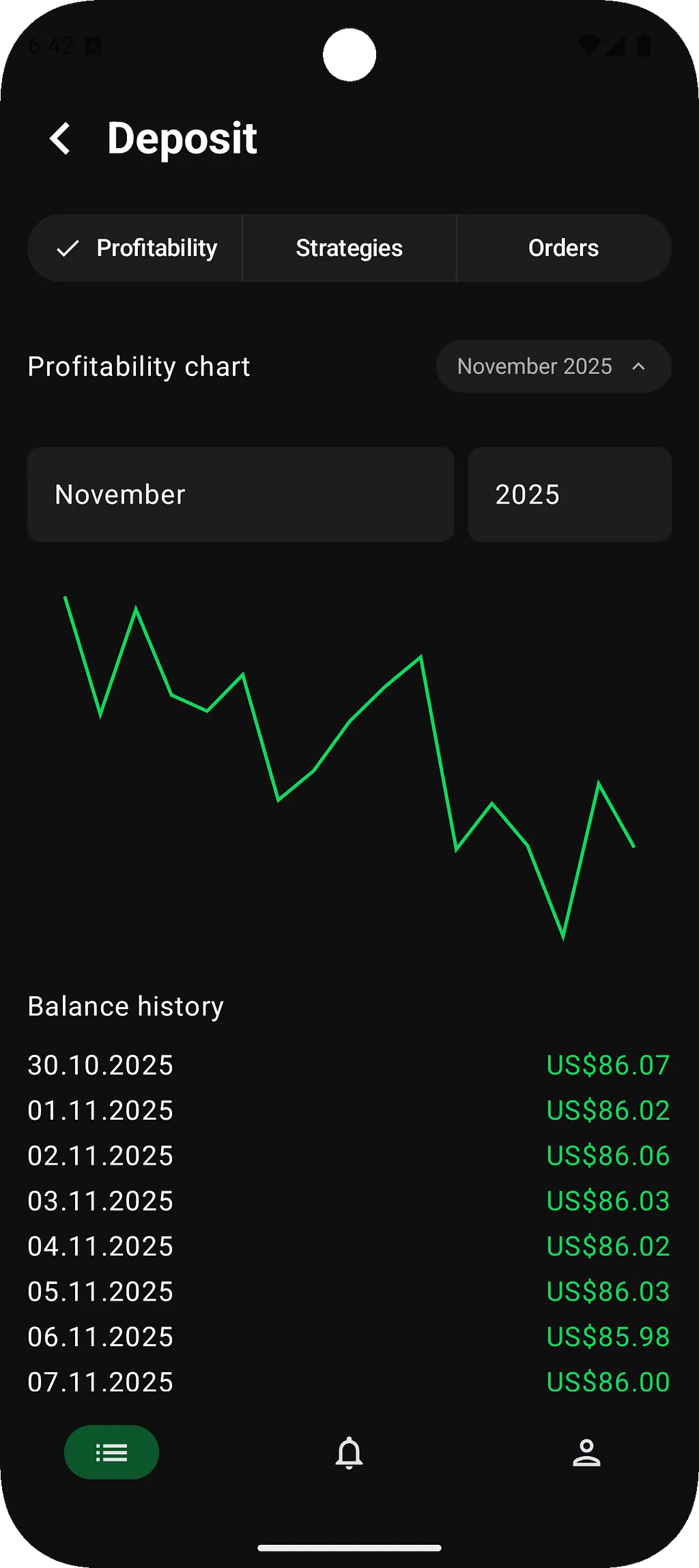
#endifHere’s the final result running on Android with all three custom components: native Compose segment picker at the top, two boxes with dropdown menus for date selection, and the chart rendered using the ComposeCharts library:
Troubleshooting: Release Build Crashes
The only issue I encountered when using ComposeView was a crash that occurred only on one specific screen and only in release builds. The Skip developer marcprux quickly identified the cause: ProGuard obfuscation was removing necessary classes. You can see the full discussion in this GitHub issue.
The solution is to add keep rules to your proguard-rules.pro file for modules that use ComposeView. In my case, I needed to add the CredentialsUI module:
-keep class credentials.ui.** { *; }After adding this line, the release build crash was resolved. If you encounter similar crashes in release builds with ComposeView, check your ProGuard rules and add keep directives for the affected modules.
Conclusion
Skip really works. It’s not just a proof of concept or a toy framework — it’s a viable solution for building cross-platform applications with Swift and SwiftUI. After working with it on my Winrate project, I can confidently say it delivers on its promise.
When Skip Shines:
Skip is an excellent choice if you’re starting an application from scratch, especially if your business is iOS-first and you need an Android app that simply works and performs its core functions.
Know Your Priorities:
However, if your goal is a pixel-perfect application on both platforms with identical native experiences, I’d recommend exploring other cross-platform alternatives. Skip excels at getting you a functional Android app quickly, but achieving perfect visual parity requires extra effort with platform-specific implementations through ComposeView. Alternatively, you could consider using Skip Lite mode to share your business logic written in Swift while keeping the UI entirely native on the Android side.
Looking Forward:
Overall, I’m satisfied with Skip and optimistic about the future of Swift on Android. The recent official release of the Swift SDK for Android marks a significant milestone, and the Skip team is actively contributing to its development. For a deeper dive into Swift on Android, I recommend watching this excellent talk on the subject. This isn’t just about Skip anymore — it’s about Swift becoming a legitimate option for Android development.
The Swift ecosystem is expanding beyond Apple platforms and if you’re a Swift developer curious about Android, there’s never been a better time to explore these possibilities.